

LynxCentraal combines and refines features from yelloGUI, greenGUI and APPolo Control into a single package offering automation, error handling, custom controls, user management and more – all in one spot.
LYNX Technik control software has always been powerful. With extensive SNMP v2 support, custom automation and control editors, as well as dedicated local network user management our next goal was obvious:
consolidate the separate software strains into a single, powerful, but easy-to-use solution for ALL products.
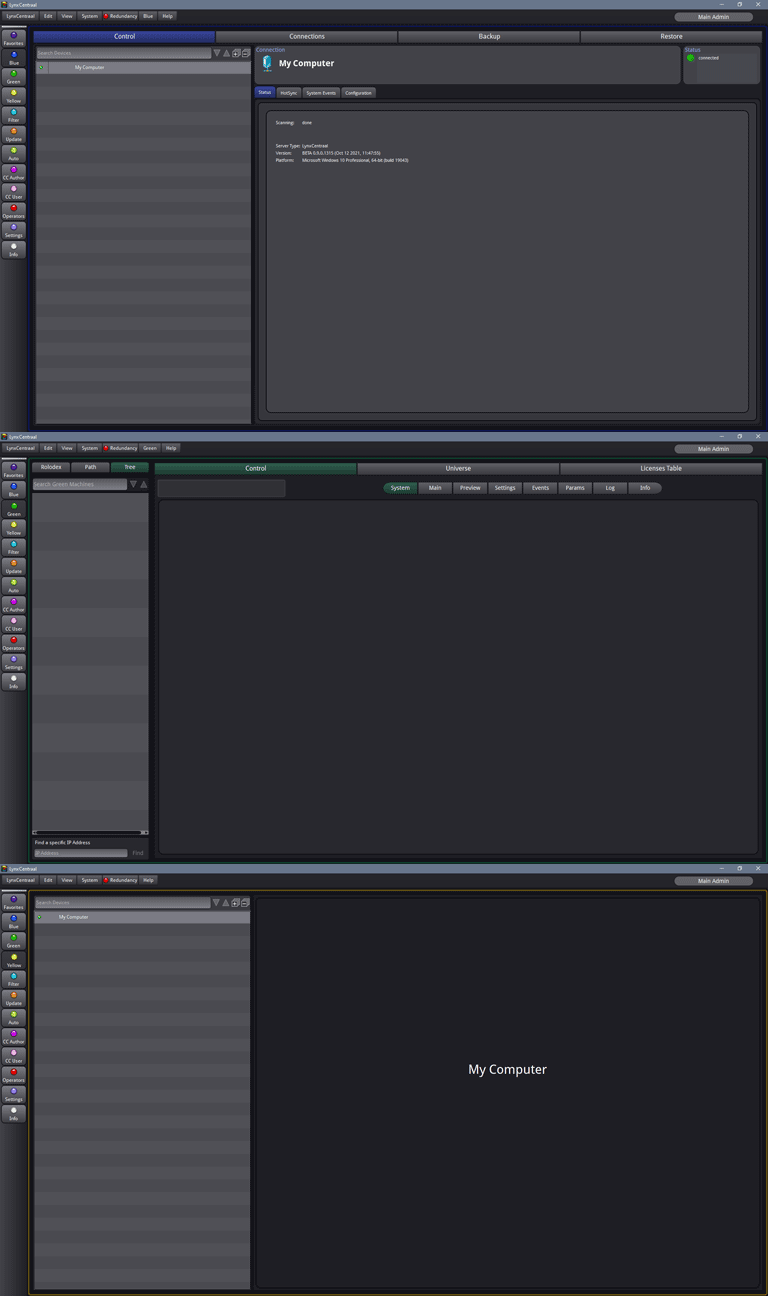
The core workspace for LYNX Technik remote control of products is the yellow, green, and blue section. These sections are made to feel and work like their GUI counterpart, just with global functionalities or administrative features abstracted. That way a user can focus on what is really important: Controlling and Monitoring.
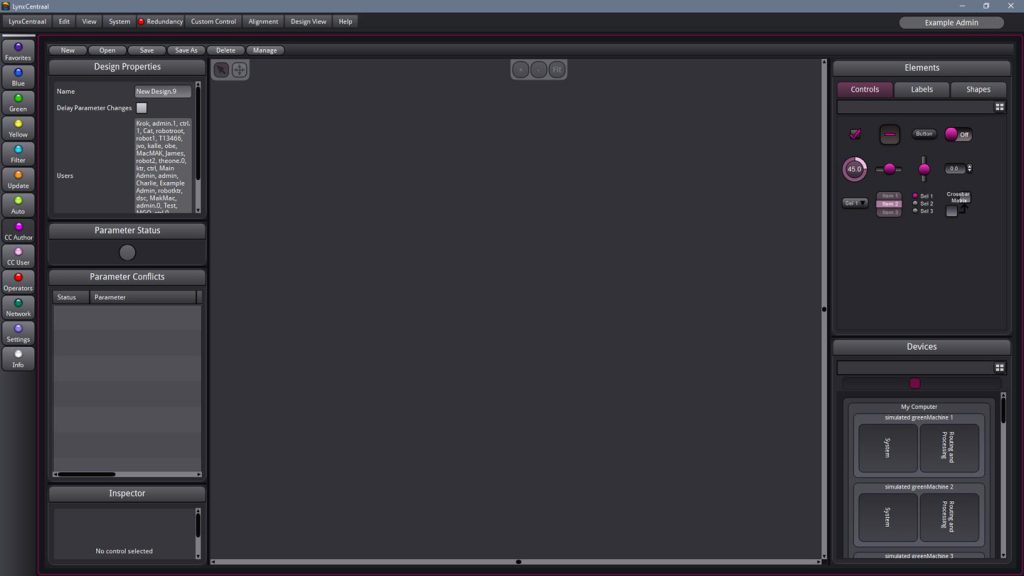
Can’t find the right settings to solve a specific issue?
Build your own controls.
Monitor the status of connected LYNX Technik devices. Monitor temperature, PSU status, in- and outputs, and much more. Change settings like audio routing, control multiple in/outputs, switch sync signals – the power is in your hands.
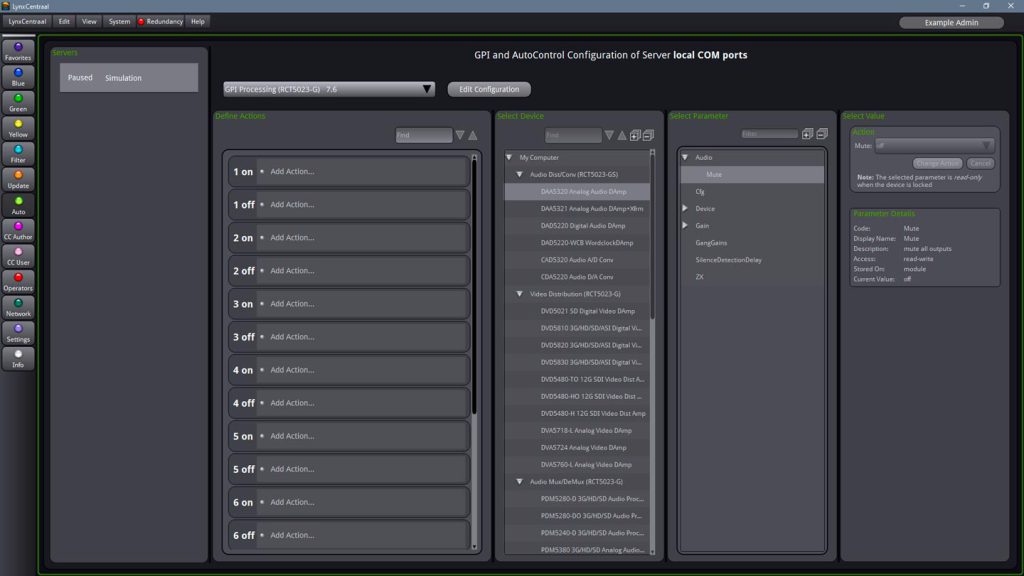
AutoControl for is a radical advancement for infrastructure control and automation.
Use automation – even for static terminal equipment.
Anyone who ever experienced a power supply failure knows how great automated redundancy switching can be. But what about even more failsaves? Or even filtering of processing paths, based on detected video standards? It couldn’t be easier to automate GPI processing with LynxCentraal.
RCT devices and GPIO connections are necessary for this automated control. For more information refer to the datasheets of the product of your choice.
Set user permissions and access –
just drag and drop
Set user groups and their permissions simply by dragging and dropping them from one column to another. Just start by adding new operators in the operators feature, or migrate your pre-existing users to the new platform, just by clicking a button.
Features include: